
• Skip to primary navigation
  • Skip to main content
  • Skip to footer
the Speak Agent logo

Speak Agent

  • About
    • About Speak Agent
    • Helping Teachers
    • #1 in Instructional Technology
    • WIDA ELD Standards
    • Awards and Media Coverage
  • Programs
        • Programs Overview
        • What We Offer

        • Math + Language
          • Upper Elementary
          • Middle School
          • High School
          • Language in the Math Practices
        • Science + Language
          • Middle School
          • High School
  • Research & Evidence
        • Research Overview
        • What We've Learned

        • A Summary of Impact Studies
        • Four Hours, 10% Higher Math Scores
        • NSF Study Results with Science + Language
        • Student Engagement Matters!
        • The Learning Science Behind Speak Agent
        • Academic Language Drives the Achievement Gap
        • Putting Theory into Practice
        • ESSA Evidence
  • News & Insights
  • Talk to Us!
  • Sign In
  • Get Support
Home › Get Support & Help for Speak Agent › Knowledge Base

Where’s My Class Roster?

Scenario:

You are looking for your class rosters or need to adjust the rosters.

Steps for Rostering:

  1. Click Classes & Students in the left-side menu. Classes & Students button

  2. In a typical implementation, you will already have your class sections displaying in the table like below. Normally you should not had to add or manage your own classes.
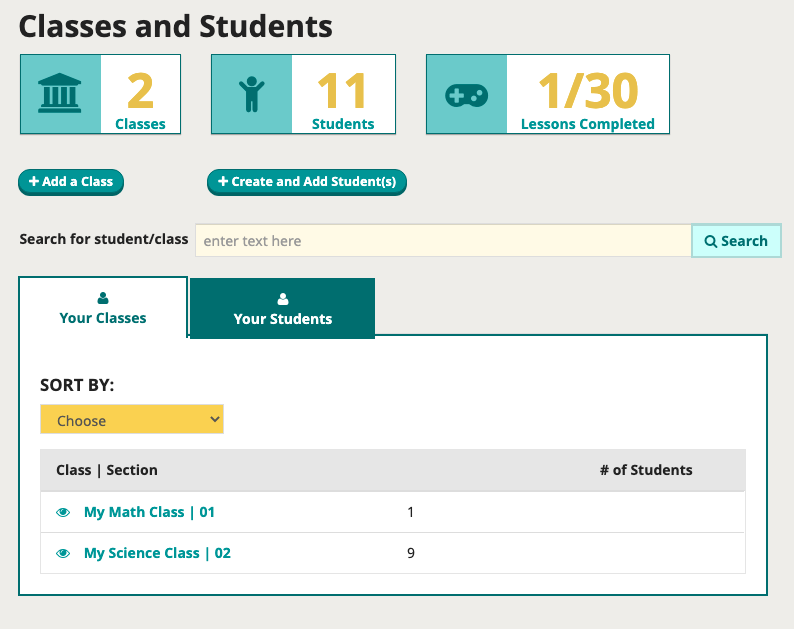
Screenshot of the classes list
  1. You can click any class to see the current student roster and progress toward completion of assignments. If the roster is incorrect, your best bet is to contact Speak Agent support.
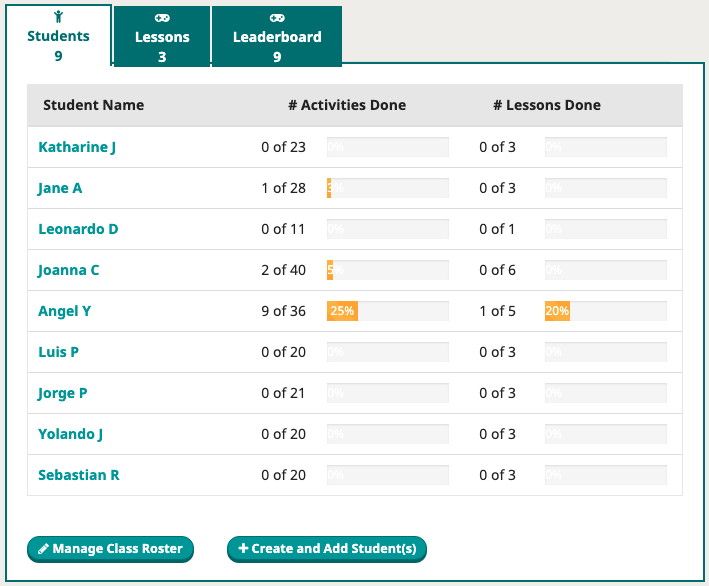
Screenshot of class roster
  1. Most school districts automate sharing of class roster changes with Speak Agent. If you are in a school or afterschool program where that is not the case, you can manage your own roster. Press Manage Class Roster to add existing students to the class. Check the boxes for students you want in this class. Students can be in two classes at once. (In this case they will receive assignments from both classes — be aware of that!) You can search the roster in this dialog using Ctrl+F (on a PC) or Cmd+F (on a Mac).
Screenshot of the manage roster modal
  1. Press Create and Add Students to add a student who is not yet in the database.
Super sleuth badge

Mission accomplished!

Footer

Speak Agent logo
  • About the Team
  • Frequently Asked Questions
  • Corporate Contact
  • LinkedIn
  • YouTube
  • Podcast

Stay informed!

Subscribe to email updates from Speak Agent.

© 2025 Speak Agent, Inc | Privacy Policy Terms of Service