
• Skip to primary navigation
  • Skip to main content
  • Skip to footer
the Speak Agent logo

Speak Agent

  • About
    • About Speak Agent
    • Helping Teachers
    • #1 in Instructional Technology
    • WIDA ELD Standards
    • Awards and Media Coverage
  • Programs
        • Programs Overview
        • What We Offer

        • Math + Language
          • Upper Elementary
          • Middle School
          • High School
          • Language in the Math Practices
        • Science + Language
          • Middle School
          • High School
  • Research & Evidence
        • Research Overview
        • What We've Learned

        • A Summary of Impact Studies
        • Four Hours, 10% Higher Math Scores
        • NSF Study Results with Science + Language
        • Student Engagement Matters!
        • The Learning Science Behind Speak Agent
        • Academic Language Drives the Achievement Gap
        • Putting Theory into Practice
        • ESSA Evidence
  • News & Insights
  • Talk to Us!
  • Sign In
  • Get Support
Home › Get Support & Help for Speak Agent › Knowledge Base

Showcase Student Drawings

Scenario

Your students have created visual representations in the Drawing Board activity and you wish to share and discuss examples with the whole class.

Video Introduction

Using the Drawings Gallery

  1. Click Classes & Students in the left-side menu.
  2. Click the title of the class section you’d like to view.
  3. On the Lesson Progress tab, click the title of the lesson you’d like to showcase.
  4. Next, select the Drawings tab. If you don’t see this tab in a lesson report, it’s probably because that lesson does not have a Drawing Board activity in it.

    Drawings tab
  5. Here you will see a gallery of visual representations created by your class. You can toggle an image of a toggle used to switch on or off settingsbetween Hide Names and Show Names, as you wish. Just select a drawing to expand it.

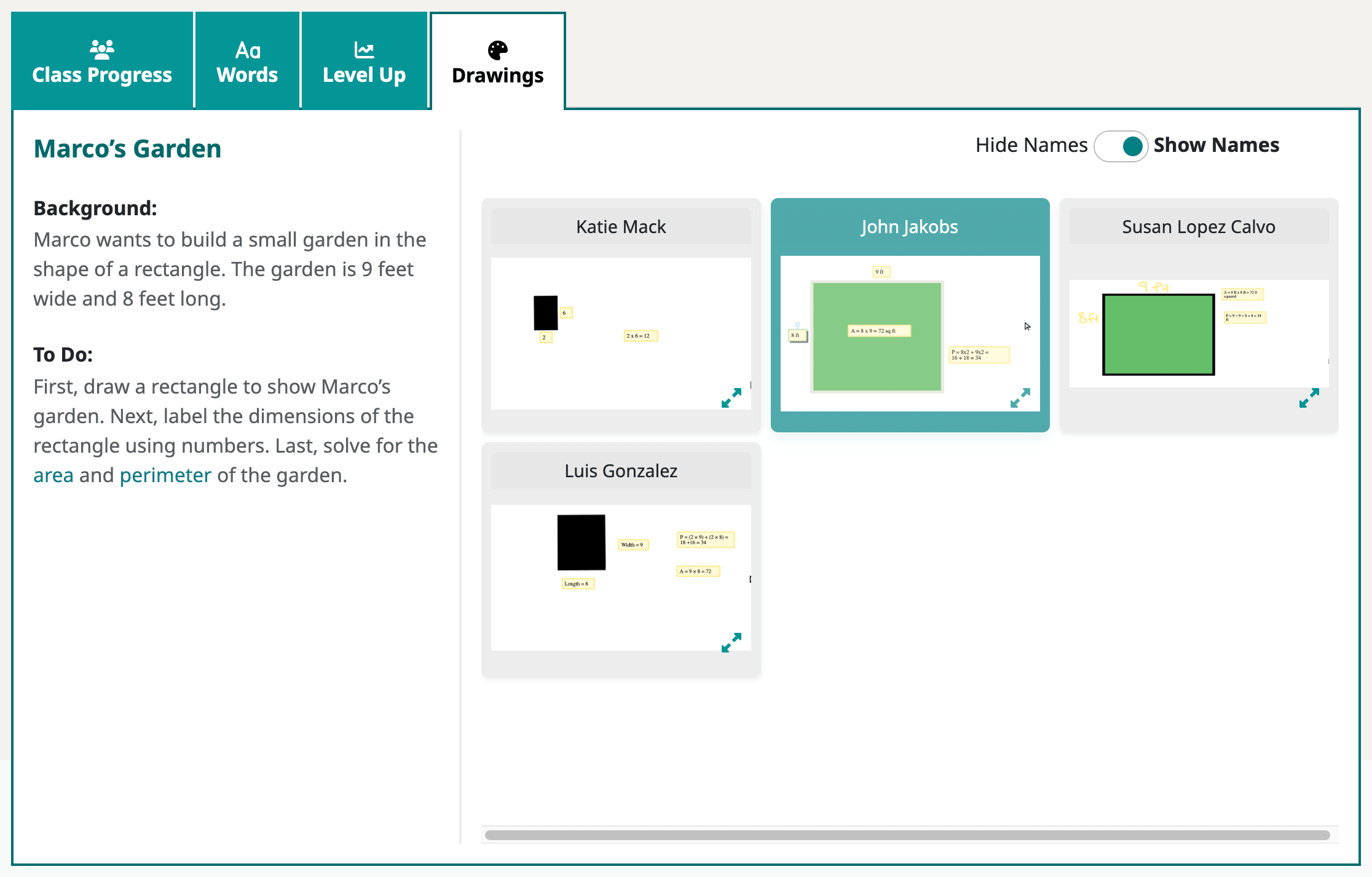
Here is what it looks like when you expand one of the drawings:
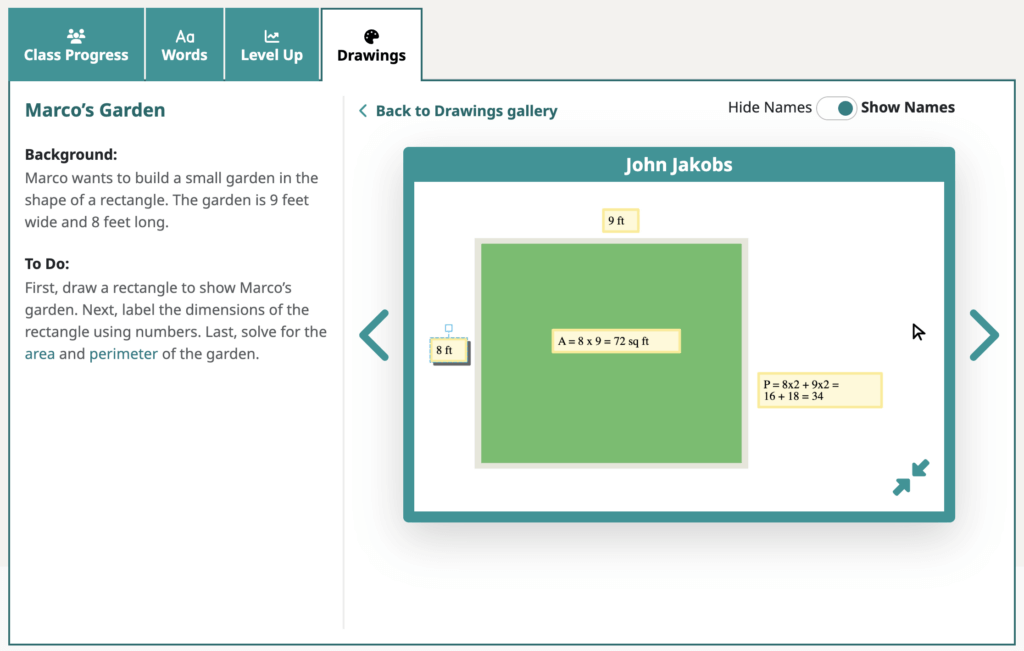
Drawings expanded view

Now you can also navigate left/right through the drawings in the gallery. If students are doing the Drawing Board activity live, you can refresh the gallery by pressing the refresh button in the top-right corner:

Refresh button for updating data

Super sleuth badge

Mission accomplished!

Footer

Speak Agent logo
  • About the Team
  • Frequently Asked Questions
  • Corporate Contact
  • LinkedIn
  • YouTube
  • Podcast

Stay informed!

Subscribe to monthly email updates from Speak Agent. (Dear Students: Sorry, this is for teachers only!)

© 2026 Speak Agent, Inc | Privacy Policy Terms of Service