
Take control of your learning environment with these new settings and preferences:
Where do I find my Settings?
If you are in grades 5-12, click Settings on the top menu bar.

If you are in grades K-4, click Settings at the top-right:

What Settings can I change?
There are two kinds of settings you can change: audio and visual settings.
Audio Settings
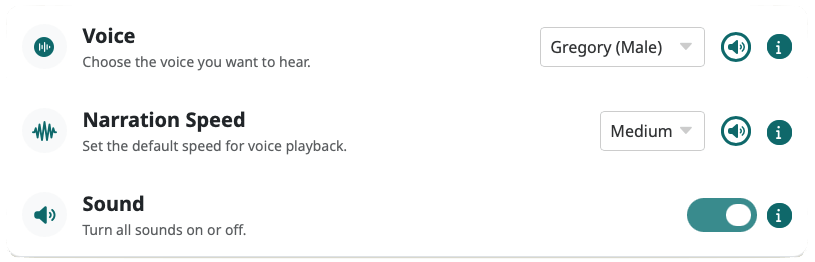
- Voice. Choose the voice you want to hear when listening to instructions and text passages everywhere in Speak Agent. Press the speaker icon to listen to each choice.
- Narration Speed. This is the speed for playing all sounds in Speak Agent. (You can also change this setting while doing an activity using the left sidebar.)
- Sound. You can turn off sounds everywhere in Speak Agent. (You can also change this setting while doing an activity using the left sidebar.)
Visual Settings
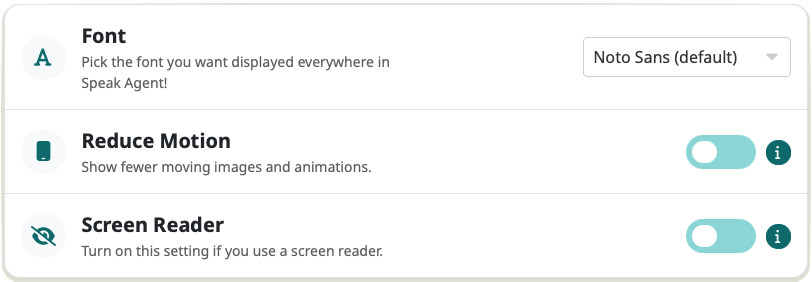
- Font. Choose the font that you find easiest to read. If you change it here, it will change the font everywhere in Speak Agent.
- Reduce Motion. Some activities have animations like sliding. If the motion makes you sick or distracted, turn them off here!
- Screen Reader. Turn on this setting to improve how the Matching game works when using a screen reader.
Activity Settings
Many of the activities in Speak Agent also have settings and tools on the left sidebar. For example, in Read Along you can change the text size. Any changes you make to activity settings only apply during that single activity.

Mission accomplished!