
• Skip to primary navigation
  • Skip to main content
  • Skip to footer
the Speak Agent logo

Speak Agent

  • About
    • About Speak Agent
    • Helping Teachers
    • #1 in Instructional Technology
    • WIDA ELD Standards
    • Awards and Media Coverage
  • Programs
        • Programs Overview
        • What We Offer

        • Math + Language
          • Upper Elementary
          • Middle School
          • High School
          • Language in the Math Practices
        • Science + Language
          • Middle School
          • High School
  • Research & Evidence
        • Research Overview
        • What We've Learned

        • A Summary of Impact Studies
        • Four Hours, 10% Higher Math Scores
        • NSF Study Results with Science + Language
        • Student Engagement Matters!
        • The Learning Science Behind Speak Agent
        • Academic Language Drives the Achievement Gap
        • Putting Theory into Practice
        • ESSA Evidence
  • News & Insights
  • Talk to Us!
  • Sign In
  • Get Support
Home › Get Support & Help for Speak Agent › Knowledge Base

Set Your Password

Scenario:

Follow these steps to set or reset your password. If your district uses Clever to access Speak Agent, you can simply use your Clever username and password. However, you can always use your Speak Agent username and password as a backup.

Steps:

  1. Check your email for a communication from Speak Agent. The “From” address will be noreply@speakagent.com. If it’s not in your Inbox, please check your Spam folder. If you can’t find it there, please contact us!
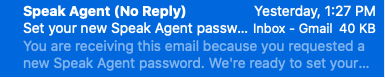
Example of an email blurb
  1. Press the Set Password button. This should open a webpage. (If this does not work, see Troubleshooting below.) Set Password button
  2. Enter your new password and confirm. Then press the Submit button.
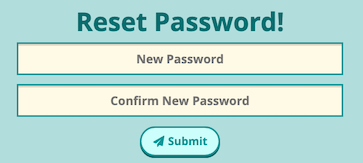
Example of a reset password form
  1. Now you should be able to continue to Speak Agent and sign in using the Teacher Sign In option.

Example of password changed confirmation message
Super sleuth badge

Mission accomplished!

Troubleshooting

Submit Button Doesn’t Do Anything

For your security, the reset password email will only work once. If it does not take your password, please try this instead:

  1. Go to Speak Agent and sign in and press the Teacher Sign In button. 
  2. Click the Help! I forgot my password link Example of password input
  3. Type in your email address and press Submit. Example username field

  4. You should now get a new email that should work. Go back to step #1 above at the top of the page.

Webpage Doesn’t Open

If the button does not open the webpage in step #2, try copying the link below the button.
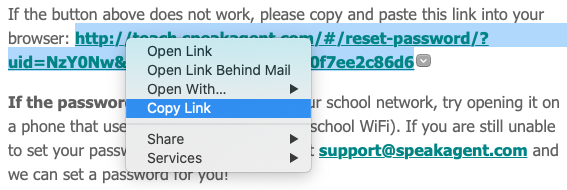
Example of how to copy an url

Then paste the link into your browser address bar: 

URL bar

Footer

Speak Agent logo
  • About the Team
  • Frequently Asked Questions
  • Corporate Contact
  • LinkedIn
  • YouTube
  • Podcast

Stay informed!

Subscribe to email updates from Speak Agent.

© 2025 Speak Agent, Inc | Privacy Policy Terms of Service