Scenario:
Your computer is “remembering” a previous Speak Agent account or product version and you need to update it.
Steps for Clearing the Cache in Google Chrome:
- First, go to teach.speakagent.com and make sure you Sign Out.

- Now sign back in as a teacher (either directly or from Clever or ClassLink). Did that solve the issue? If not, please continue…
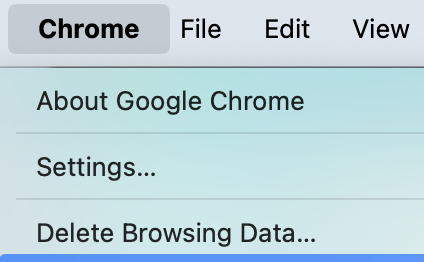
- Go to the Chrome web browser and choose Delete Browsing Data.
- Check the boxes for “Cookies…” and “Cached images…” then press the Delete Data button.

- Next, close/quit the Chrome browser completely (all windows or tabs).
- Return to teach.speakagent.com and Sign In. Or, if using Clever or ClassLink, sign in from your usual dashboard.
- Did that solve the issue? If not, try extending the clear cache time range from “Last hour” to a longer period of time. For example, if you’ve been having an issue for a week, clear the cache for at least 7 days back.
If this does not work, please contact support!

Mission accomplished!