
Speak Agent, Inc. is committed to ensuring accessibility for all users by complying with the AA Level of Web Content Accessibility Guidelines (WCAG) 2.x standards.
Using the Guide
- Use the embedded links below to navigate either by platform feature or by IDEA disability category.
- In addition to accessibility information, the guide also includes learning supports for English learners (ELs) and all learners.
Table of Contents
- Purpose
- How to Navigate the Guide
- Student and Browser Settings
- Accessibility Features List
- Recommendations by IDEA Category
Purpose
The purpose of this guide is to help you support your students to make the best use of Speak Agent programs. The features highlighted in this guide will benefit students with learning differences, as well as learners who may benefit from language-based supports, such as multilingual learners.
Speak Agent, Inc. is committed to ensuring digital accessibility for all users, targeting the Web Content Accessibility Guidelines (WCAG) 2.x AA standards. If you or your students encounter any accessibility issues with the Speak Agent digital platform (https://teach.speakagent.com), please email support@speakagent.com or notify your school district’s dedicated Partner Success Manager.
How to Navigate the Guide
You may browse the recommendations in this guide in one of two ways:
Student Settings
Certain accessibility features and language supports are student settings.

Grades K to 4
This image shows where the Settings are for students in primary grades:

Grades 5 to 12
This image shows where the Settings are for students in secondary grades:

Web Browsers


 Chrome, Edge, and Firefox: All of the “Always On” accessibility features should work with the latest version of these web browsers.
 Safari: If keyboard navigation and tabbing are not active, go to System Preferences, choose Accessibility and make sure Full Keyboard Access is ON.
Accessibility Features List
All features in this guide are available for all Speak Agent programs at all grade levels and operate in a consistent manner across all courses.
Audio Controls: Listen, Pause, Replay [always ON]
Autism|EL|Hearing Impairment|Intellectual Disability|
Speech Language Impairment|Visual Impairment
- Students can access audio playback at any time for all instructions, reading texts, captions, answer choices, hints, words, sentences, and even student-created content. Each text block has separate playback.
- Students may replay audio as many times as they like.
- Alternatively or in addition, students may use a screen reader.
Visual cue:

Audio Controls: Mute [student setting]
Autism|Emotional Disturbance|Other Health Impairment|TBI
- Students may mute sounds from the left sidebar while in any activity.
- Students may also mute sounds from their Settings menu.
Visual cue:

Audio Controls: Narration Control [student setting]
Autism|EL|Hearing Impairment|Intellectual Disability|Other Health Impairment|Speech Language Impairment|TBI |Visual Impairment
- Students may choose from five audio playback speeds at any time.
- They may change speeds from the left sidebar while in any activity.
- Students may also change narration speed from their Settings menu.
Visual cue:

Audio Controls: Voice [student setting]
Autism|EL|Hearing Impairment|Intellectual Disability|Other Health Impairment|Speech Language Impairment
- Students may choose from five audio playback speeds at any time.
- They may change speeds from the left sidebar while in any activity.
- Students may also change narration speed from their Settings menu.
Visual cue:

Captions and Instructions [student choice]
Deaf-Blindness|Deafness|EL|Hearing Impairment|Visual Impairment
- Captions and instructions are always available in both text and audio formats (and support screen readers).
- Instructions are brief and may be skipped so that students can immediately start any activity. There is no button press required to skip instructions. Students can simply start doing the activity.
- All videos offer closed captioning. There are no video overlays.
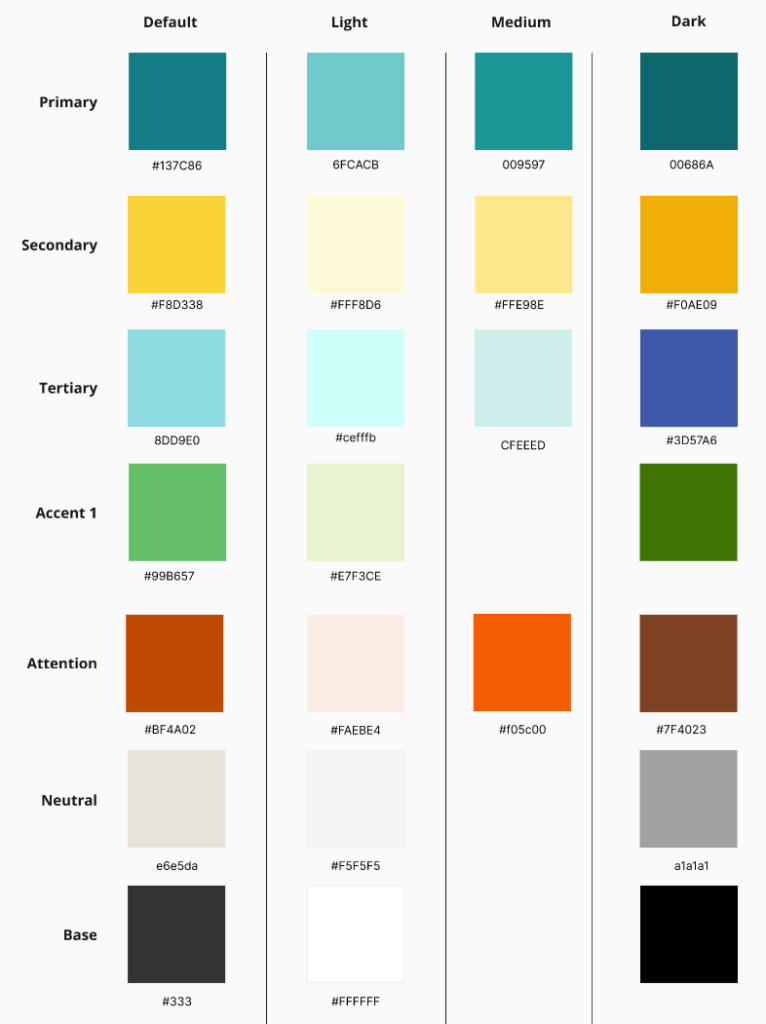
Colors [always ON]
- Speak Agent uses high-contrast colors for fonts and backgrounds.
- Alternative visual cues to color such as highlights, borders, etc. are used, in addition to colors, to differentiate corrective feedback.
Differentiation Tools [teacher choice]
- When a teacher assigns a Speak Agent digital lesson, they may configure it to make certain activities optional or add/change/remove due dates for specific students or groups.
- Teachers may also copy and modify any Speak Agent digital lesson in order to tailor the lesson to a specific student’s unique needs. For example, a teacher may remove activities, add new activities from our library, or create their own custom activities using our lesson-building tools.
- Teachers may even create new individualized lessons from scratch.
- Speak Agent, Inc. offers teachers training on this process in its PD 201: Differentiated Instruction course.
Focus Mode [student choice]
Autism|Other Health Impairment|SLD|TBI|Visual Impairment
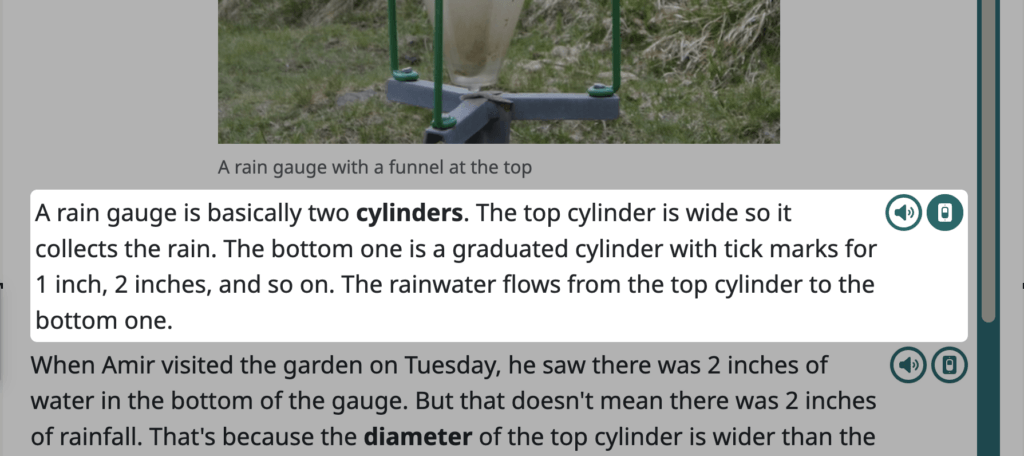
- Focus Mode is a visual reading aid in the Read Along activity that darkens the entire screen except for the specific paragraph of text selected by the reader.
- This can help students who have visual impairments or SLDs such as dyslexia, and can also help students who need help to focus their attention on the text.
- To enter Focus Mode, a student may press the dimmer switch icon.
- To exit Focus Mode, a student may simply click or tap anywhere outside of the focus area.
Visual cue:

Font Control [student setting]
- Students may choose from among several font options to find the one that they find easiest to read and that formats consistently throughout our website.
Highlighter [student choice]
- Students may, optionally, highlight (or un-highlight) any Read Along text they wish in any of four primary colors.
- The student may choose which color(s) are easiest for them to distinguish.
- This strategy supports tracking when reading. Students can also use highlighting to categorize things like textual elements, semantic categories, literary techniques, and trouble words.
- Note that key academic concepts in Speak Agent are bolded on the first usage to make them easy to spot.
Visual cue:

Listening Opportunities [always ON]
Autism|EL|SLD|Speech Language Impairment|Visual Impairment
- Listening is embedded in every Speak Agent activity, either as an explicit task, as reinforcement, and/or as a student-activated support.
- For example: In the sentence processing activity Scrambled Sentences students first listen to a brief story before they piece the story back together one sentence at a time. At each stage they listen to the sentences that they solve and the story parts that they recreate.
- Speak Agent includes a similar activity for word parts (e.g, syllables and affixes) called Scrambled Words.
- Similarly, all story-based activities may be narrated aloud.
Visual cue:

Multimodal Activities [always ON]
Autism|Deafness|EL|Hearing Impairment|SLD|TBI|Visual Impairment
- A hallmark of Speak Agent activities is the combination of text, audio, and visual cues/options for each key academic concept presented to students.
- Below is an example of this practice (reduced in size):

Navigation and Selection [always ON]
Autism|EL|Intellectual Disability|Orthopedic Impairment|SLD|TBI
- Navigation is simple, consistent, and persistent.
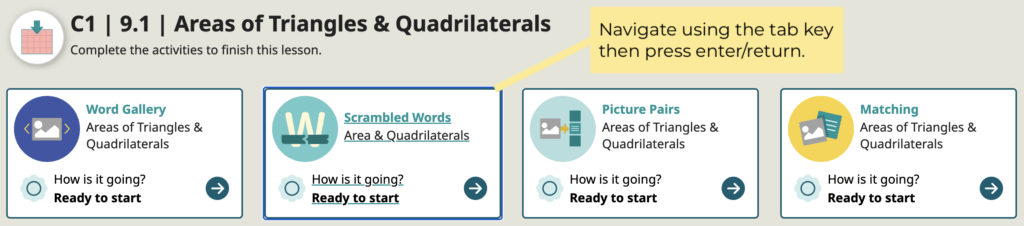
- Students may navigate Speak Agent (web version) using their keyboard tab and enter/return keys without a computer mouse or trackpad.
- Where activities use click-and-drag to manipulate objects on screen, there is always an alternative such as isolated touch or point-and-click. Click-and-drag is never required to complete any performance task or navigation workflow.
- Speak Agent uses single-select shortcuts for long academic words where typing is required. This helps students who have difficulty typing to compose open-ended responses.
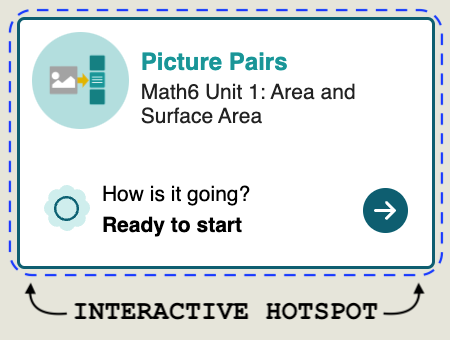
- Frequently navigated areas have large hotspots that are often much larger than the graphical area on screen. For example, in the following image, a student who is trying to press the forward arrow button can click anywhere within the blue dotted lines to start this activity. (When using keyboard tab order navigation the entire tile will come into focus.)
No Time Performance [always OFF]
- Speak Agent has no timed activities. Teachers can see how much time students spend on each activity, but there is no timer visible to students and time-to-completion is never a factor in scoring.
Non-Text Content: Visual Aids [always ON]
Autism|Deafness|EL|Hearing Impairment|Intellectual Disability|SLD|TBI
- Each vocabulary term or academic concept is paired with a unique symbol that supports comprehension. The Speak Agent symbol set was benchmark-tested against a leading Augmentative and Alternative Communication (AAC) symbol set in a study with the Johns Hopkins Kennedy Krieger Institute, Towson University, and the US Department of Education.
- All Speak Agent lesson modules include a Word Gallery. This is a visual learner’s dictionary customized for a specific unit of study. Students may navigate through the words and visual aids at their own pace and listen to narrations. Each word includes a brief learner’s definition (with audio). Some images also include a caption (with audio) to provide context for how the word may be applied.
- All writing activities in Speak Agent embed a visual word bank based on that unit’s specific word wall words. Students simply press on a visual and the text inserts into their writing area.
Examples of symbols used in Speak Agent:

Persistent State [always ON]
- Speak Agent saves progress during learning activities when technically feasible. This ensures that when a student returns to the activity, they may pick up exactly where they left off.
- Navigation does not change during the learning experience so that students can always get back to prior screens.
Reduce Motion [student setting]
Autism|Emotional Disturbance|Other Health Impairment|SLD|TBI|Visual Impairment
- Students can turn off sliding animations and other motions if they find them disorienting or distracting.
- There is a single on/off toggle in Settings that does this platform-wide.
Screen Reader Support [always ON + student setting]
Deaf-Blindness|TBI|Visual Impairment
- Students can use a screen reader at any time for all instructional text, reading texts, captions, answer choices, hints, words, sentences, and even student-created content.
- Screen readers are built into Narrator (MS Windows), Apple VoiceOver, and Google Chromebooks to support both audio playback and braille.
- Turn on Screen Reader mode in the student’s Settings to improve the screen reading experience in the Matching game. This mode prevents audio conflict and gives the student control over when they are ready to progress to the next matching pair.
Visual cue:

Speak or Type [student choice]
- The reading and diagramming activities in Speak Agent give students a choice of whether to respond by typing, speaking, or both. This lets students express their ideas using the medium which they find most accessible.
Text Magnification [student choice]
Deaf-Blindness (partial sight)|Visual Impairment (partial sight)
- All text in Speak Agent (excluding labels inside of images) can be magnified using browser zoom controls.
- Speak Agent also offers a text magnification setting within all of its text-based activities.
- Students may adjust text size at any time to suit their needs.
Visual cue:

Translated Text [student choice]

- All Speak Agent activities allow for instant translation into 133 languages at any point during the activity.
- The inline translation feature supports all of the visual reading aids in Speak Agent, including text magnification, highlighting, bolded keywords, etc. Learn more about translation at the following link: https://www.speakagent.com/support/knowledge-base/translating-text/.
Visual cue:

Recommendations by IDEA Category
All Students
The following are built-in features/settings suitable for all learners:
Autism
Autism spectrum disorder (ASD) is a neurological and developmental disorder that affects a child’s social and communication skills. It may also impact behavior.
Built-in features/settings to consider using:
- Audio Controls: Listen, Pause, Replay
- Audio Controls: Mute
- Audio Controls: Narration Speed
- Audio Controls: Voice
- Focus Mode
- Listening Opportunities
- Multimodal Activities
- Navigation and Selection
- Non-Text Content: Visual Aids
- Reduce Motion (set to ON)
Deafness
Students with a diagnosis of deafness cannot hear most or all sounds, even with a hearing aid.
Built-in features/settings to consider using:
Deaf-Blindness
This refers to students with both hearing and visual impairments such that different accommodations are needed than for students with deafness or students with blindness.
Built-in features/settings to consider using:
- Captions and Instructions
- Font Control (partial sight)
- Screen Readers (braille). In Settings, set Screen Reader to ON.
- Learn about Narrator at microsoft.com.
- Learn about VoiceOver at apple.com. (Activate on a Mac using Command-F5.
- Learn about Google Chromebook at google.com.
- Text Magnification (partial sight)
Emotional Disturbance
This IDEA category refers to an inability to learn or maintain appropriate relationships and behaviors due to factors other than intellectual, sensory, or health factors. Examples include anxiety disorder, schizophrenia, bipolar disorder, obsessive-compulsive disorder, and depression.
Built-in features/settings to consider using:
- Audio Controls: Mute
- Focus Mode
- Reduce Motion (set to ON)
English Learner (EL)
The term English Learners describes students designated by federal Title III and to enroll in a program designed to improve English language proficiency. These same features, however, can be used with any multilingual or monolingual student who needs extra language support.
Built-in features/settings to consider using:
- Audio Controls: Listen, Pause, Replay
- Audio Controls: Narration Speed
- Audio Controls: Voice
- Captions and Instructions
- Listening Opportunities
- Multimodal Activities
- Navigation and Selection
- Non-Text Content: Visual Aids
- Translated Text
Hearing Impairment
A hearing impairment is a hearing loss not covered by the definition of deafness. This type of loss can change over time. It is not the same as having trouble with auditory or language processing.
Built-in features/settings to consider using:
- Audio Controls: Listen, Pause, Replay
- Audio Controls: Narration Speed
- Audio Controls: Voice
- Captions and Instructions
- Non-Text Content: Visual Aids
Intellectual Disability
This IDEA category is used to describe significantly below-average intellectual functioning. Down Syndrome is an often-cited example.
Built-in features/settings to consider using:
- Audio Controls: Listen, Pause, Replay
- Audio Controls: Narration Speed
- Audio Controls: Voice
- Focus Mode
- Highlighter
- Navigation and Selection
- Non-Text Content: Visual Aids
Multiple Disabilities
Please refer to the other categories, as appropriate to the student’s disabilities.
Orthopedic Impairment
An orthopedic impairment restricts student’s motor abilities. An example is cerebral palsy.
Built-in features/settings to consider using:
- Navigation and Selection (keyboard option)
Other Health Impairment
This is a category of conditions that limit a child’s strength, energy, or alertness. Examples include asthma, ADD or ADHD, diabetes, epilepsy, heart conditions, hemophilia, lead poisoning, leukemia, sickle cell anemia, and Tourette Syndrome.
Built-in features/settings to consider using:
- Audio Controls: Mute
- Audio Controls: Narration Speed
- Audio Controls: Voice
- Focus Mode
- Reduce Motion (set to ON)
Specific Learning Disability (SLD)
An SLD is a condition that affects a child’s ability to listen, speak, read, write, reason, spell, or do math operations. Examples: dyslexia (affecting reading), dyscalculia (affecting math), and dysgraphia (affecting written expression). SLD is the most common IDEA category, affecting about ⅓ of IDEA-qualified students.
Built-in features/settings to consider using:
- Focus Mode
- Font Control
- Highlighter
- Listening Opportunities
- Multimodal Activities
- Navigation and Selection
- Non-Text Content: Visual Aids
- Reduce Motion (set to ON)
Speech Language Impairment
This IDEA category covers difficulties with speech or language. Common examples are stuttering, trouble pronouncing words, or voicing certain sounds. It also covers language problems that make it hard for children to understand words or express themselves.
Built-in features/settings to consider using:
- Audio Controls: Listen, Pause, Replay
- Audio Controls: Narration Speed
- Audio Controls: Voice
- Listening Opportunities
Traumatic Brain Injury (TBI)
TBI refers to a brain injury caused by external physical force. The injury may affect cognition, language, memory, attention, sensory or motor abilities, behavior, or other areas.
Built-in features/settings to consider using:
- Audio Controls: Mute
- Audio Controls: Narration Speed
- Colors
- Focus Mode
- Font Control
- Highlighter
- Multimodal Activities
- Navigation and Selection
- Non-Text Content: Visual Aids
- Reduce Motion (set to ON)
- Screen Reader Support (set to ON)
Visual Impairment
This IDEA category includes both partial sight and blindness that cannot be corrected by eyewear.
Built-in features/settings to consider using:
- Audio Controls: Listen, Pause, Replay
- Audio Controls: Narration Speed
- Captions and Instructions
- Colors
- Focus Mode
- Font Control (partial sight)
- Highlighter
- Listening Opportunities
- Multimodal Activities
- Reduce Motion (set to ON)
- Screen Reader Support (set to ON)
- Text Magnification (partial sight)
This guide provides Speak Agent Inc’s good-faith assessment of how its accessibility features serve users of the Speak Agent platform, to the best of its knowledge, based on the criteria explanation provided by the Web Content Accessibility Guidelines (WCAG) posted at the time of evaluation.
If you or your students encounter any accessibility issues with the Speak Agent digital platform (https://teach.speakagent.com), please contact support or notify your school district’s dedicated Partner Success Manager.