
Scenario
Your students have created visual representations in the Drawing Board activity and you wish to share and discuss examples with the whole class.
Video Introduction
Please note: Only student drawings created on or after February 27, 2026 will display in the gallery.
Using the Drawings Gallery
- Click Classes & Students in the left-side menu.
- Click the title of the class section you’d like to view.
- On the Lesson Progress tab, click the title of the lesson you’d like to showcase.
- Next, select the Drawings tab. If you don’t see this tab in a lesson report, it’s probably because that lesson does not have a Drawing Board activity in it.

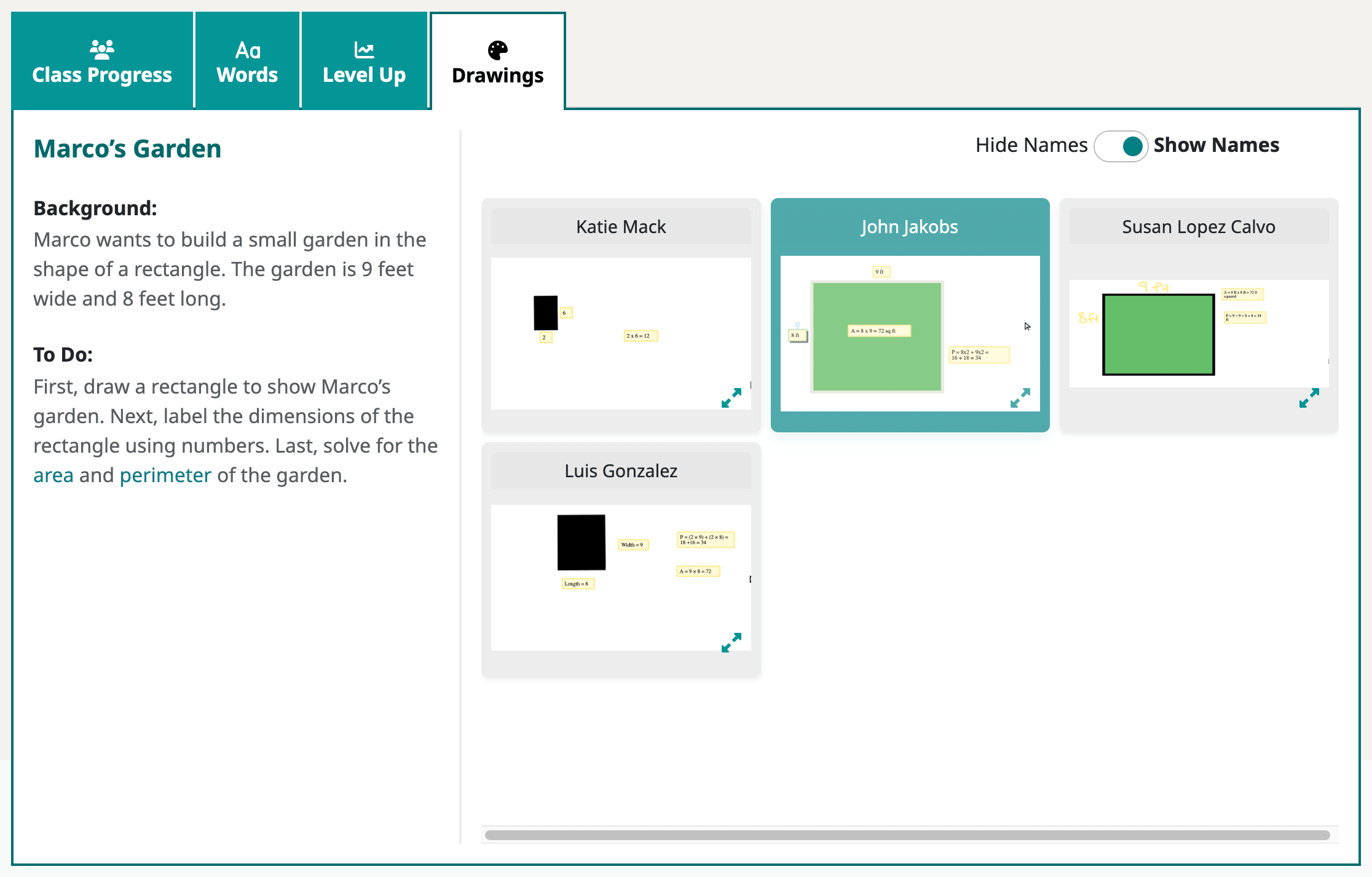
- Here you will see a gallery of visual representations created by your class. You can toggle
 between Hide Names and Show Names, as you wish. Just select a drawing to expand it.
Here is what it looks like when you expand one of the drawings:
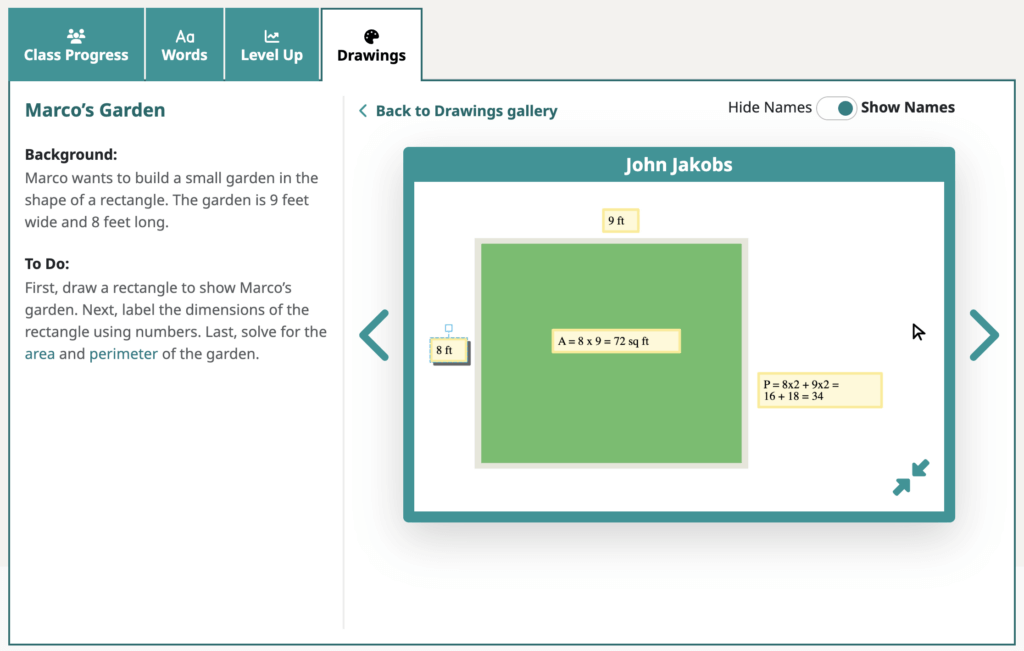
Now you can also navigate left/right through the drawings in the gallery. If students are doing the Drawing Board activity live, you can refresh the gallery by pressing the refresh button in the top-right corner:

Mission accomplished!