
Directions:
- Visual: Think about what math questions the picture creates in your mind. This is just to get you thinking. There’s nothing you need to do here. Just press Next.
- Math concept: This step introduces a math concept. This will be the topic of the math problem you will write. Press Next.
- Write a problem: You need to write two things: (A) what information is needed to solve the math question and (B) the text of your word problem. The pigpen problem on the right side is there to give you an example. You can see what a finished word problem looks like. You are not going to use this example in your own problem! It’s just an example.
- Solution steps: You have to actually solve your problem to make sure the solution works. The solution steps will be hidden from your classmates at first. But they will be able to see it after they type in their solution.
- Checklist: After making your problem, do the checklist. The Send to Teacher button will turn blue and become clickable only after you check all the boxes.
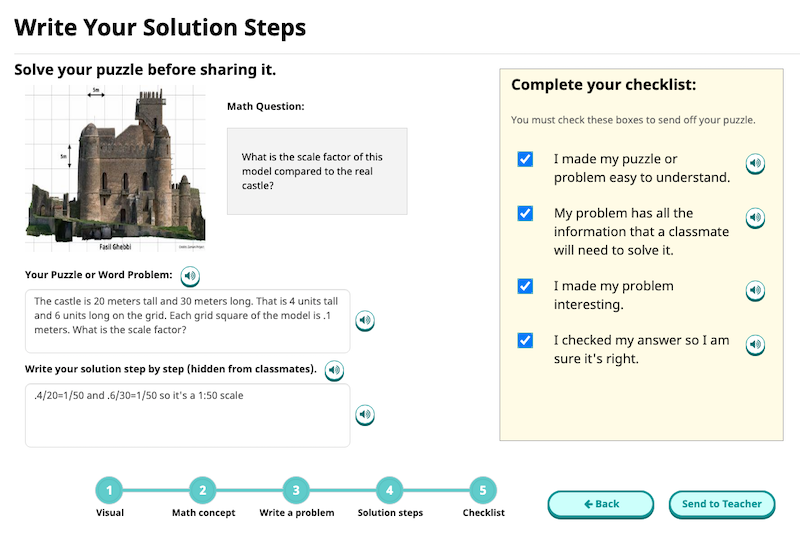
- After pressing the Send to Teacher button, you will get a popup confirmation that it’s been sent.

- Once you see the SENT message, it’s your teacher’s turn!
- You will get message in Speak Agent when your word problem is approved. That means it has been assigned to a random classmate.
- If your problem is not approved you will get feedback from your teacher. Then you can edit and re-send your problem.
- Meanwhile, you might get a word problem from a classmate. You have a chance to answer it, plus you can rate it.
- You can see how your classmate rated your problem by going to My Work. Click the notebook icon on your top menu and then click the Math Problem Maker in the top row:
 .
.

Mission accomplished!